Backup settings to Cloud
Quick steps:
|
Export device settings to OMS for backup: Settings Clone > Backup settings to cloud > Select a device > Click Backup |
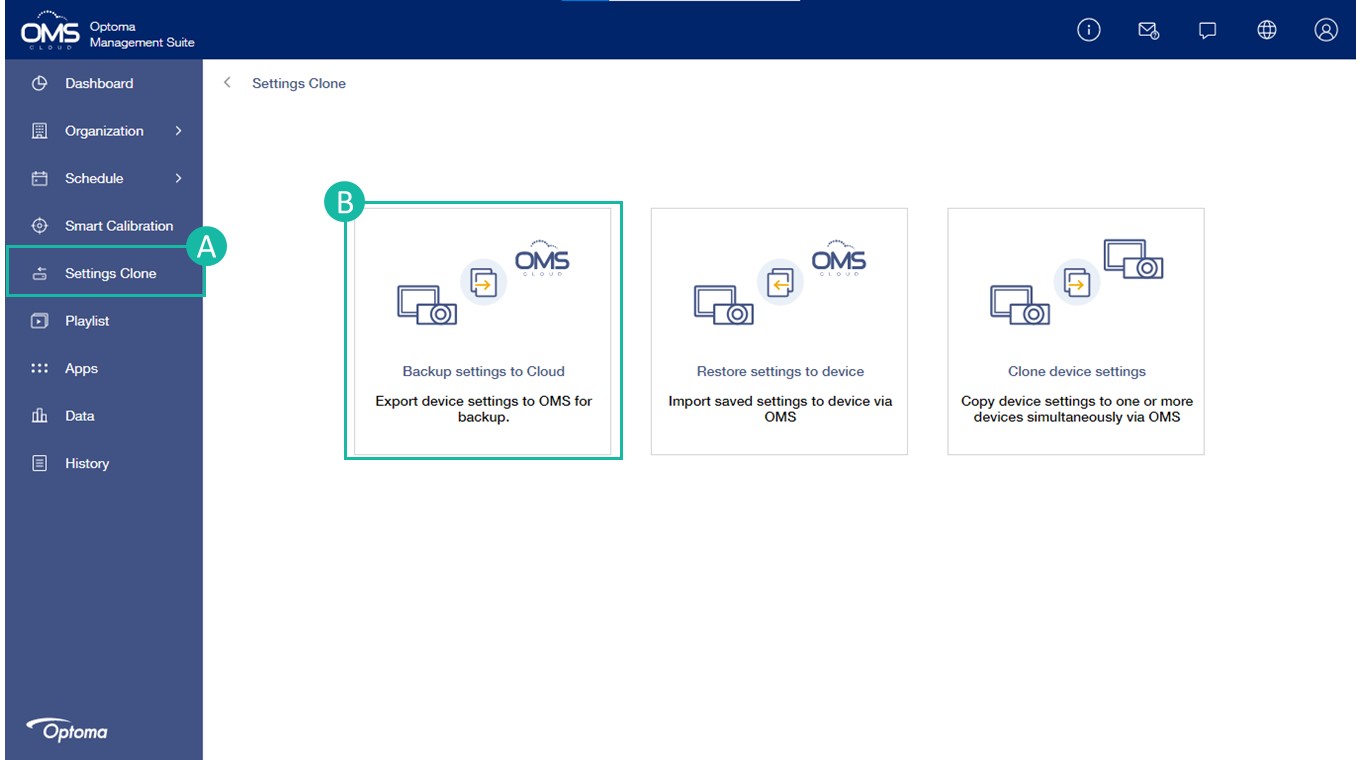
A Click Settings Clone on the left function menu.
B Click Backup settings to cloud.
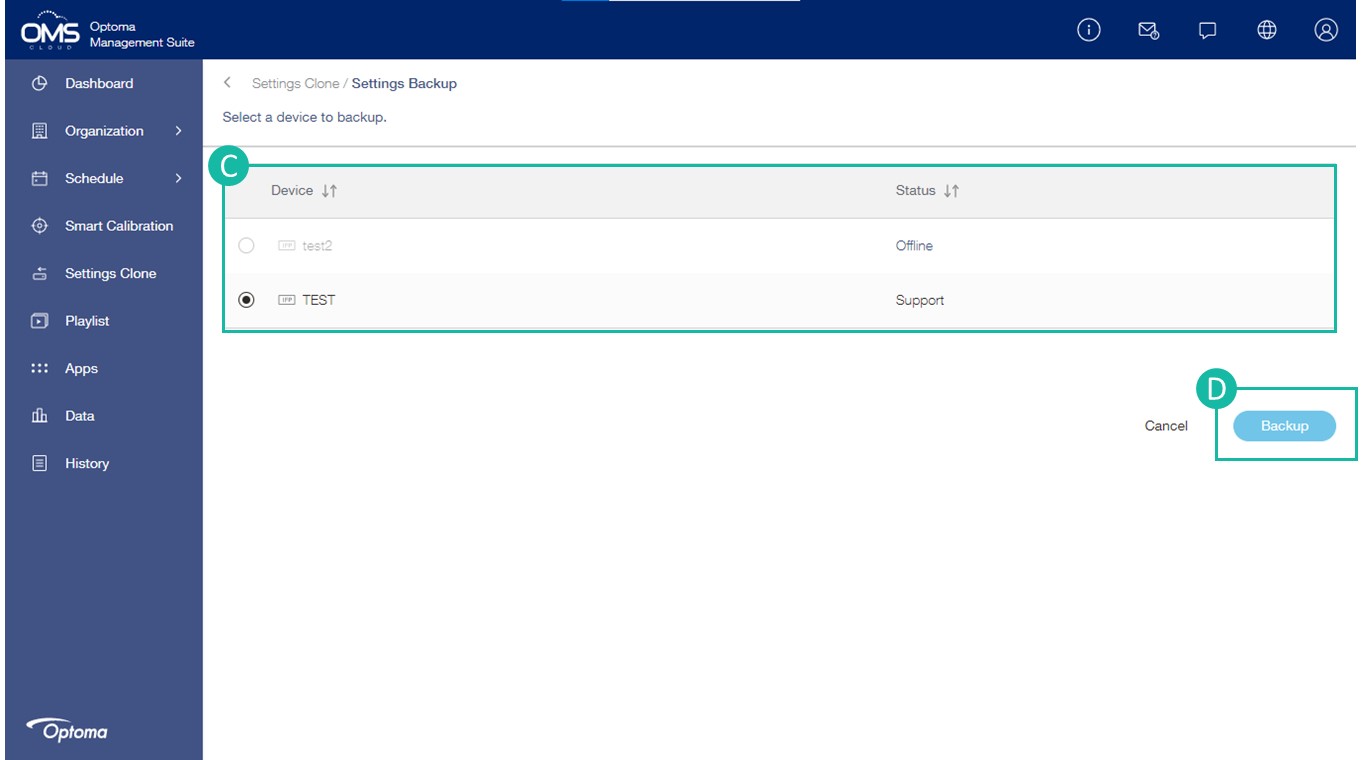
C Select a device in the device list.
D Click Backup to export settings.
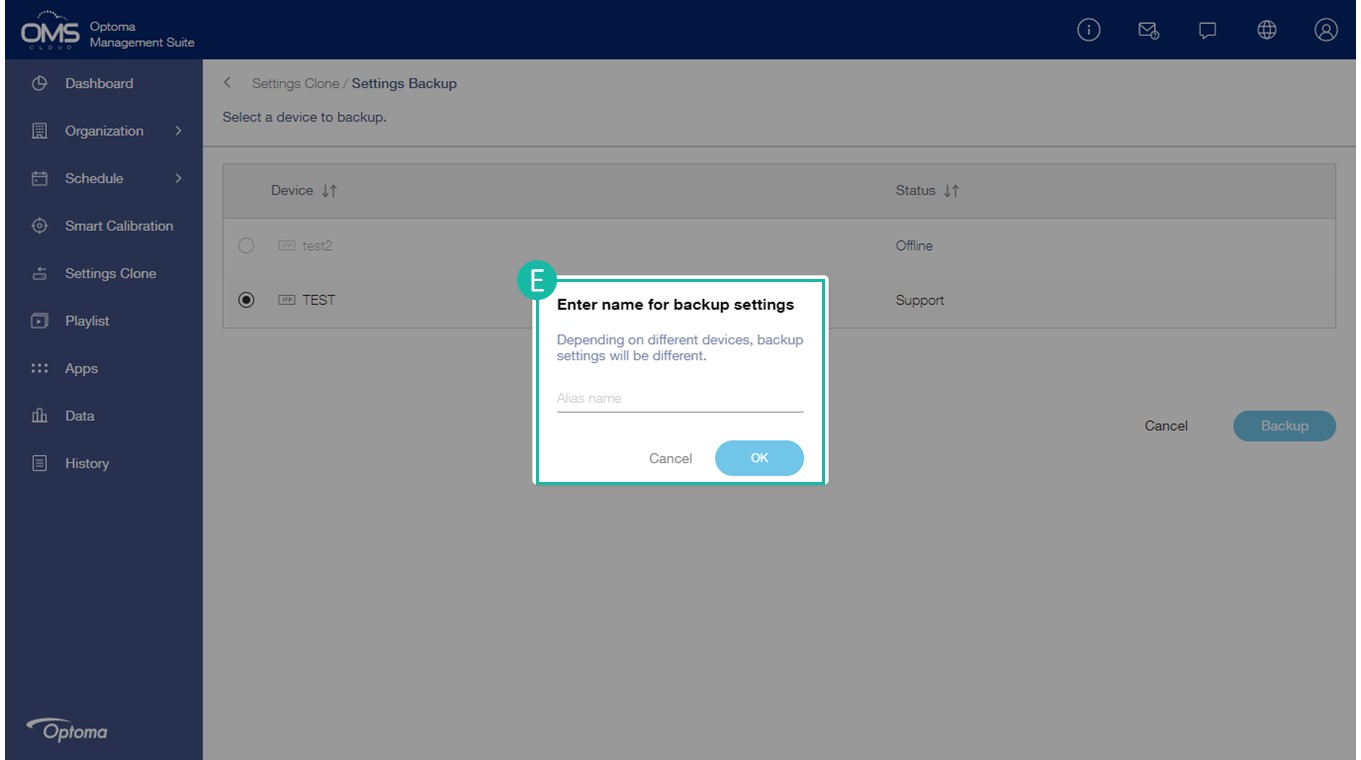
E Enter the name for backup settings.
*Depends on different devices, backup settings will be different.
Restore settings to device
Quick steps:
|
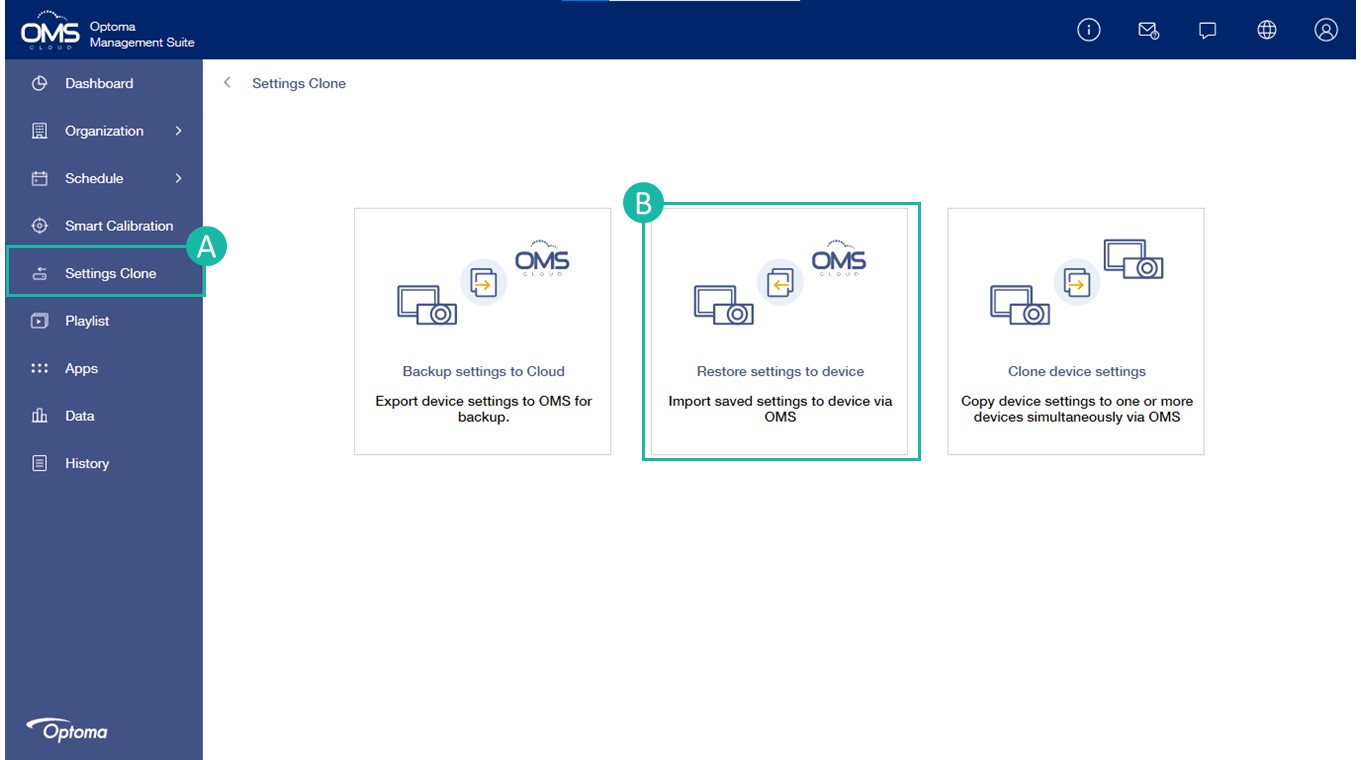
Import saved settings to device via OMS Settings Clone > Restore settings to device > Select the file > Select devices |
A Click Settings Clone on the left function menu.
B Click Restore settings to device.
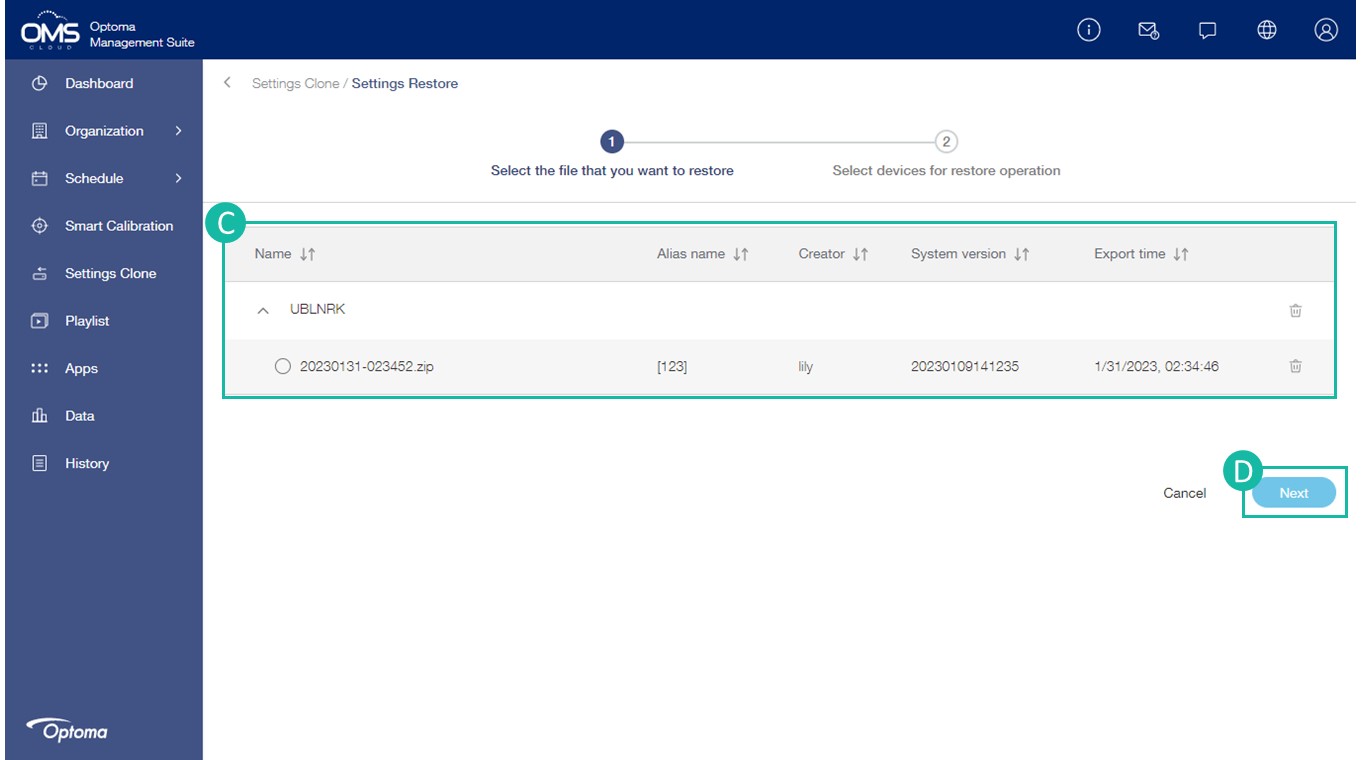
C Select the file in the list.
D Click Next.
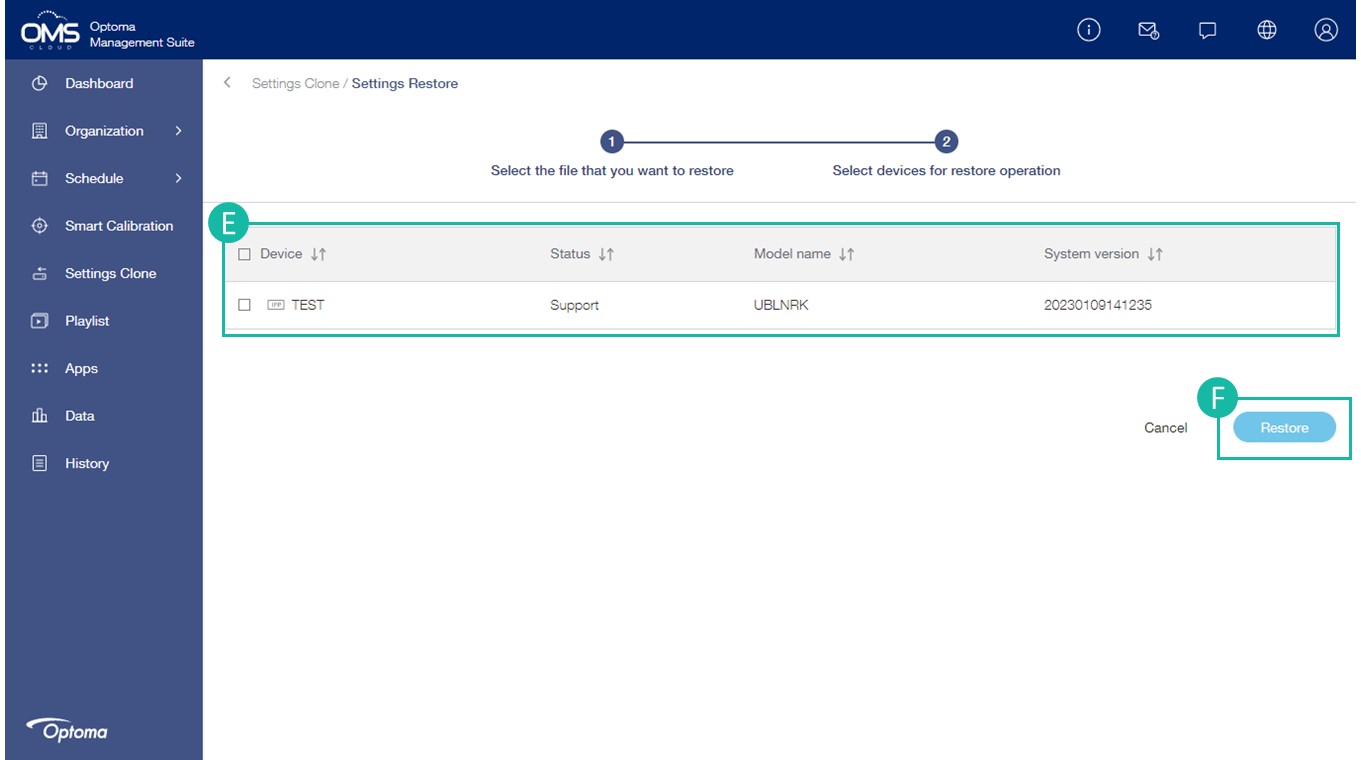
E Select devices for restore operation.
F Click Restore.
Clone device settings
Quick steps:
|
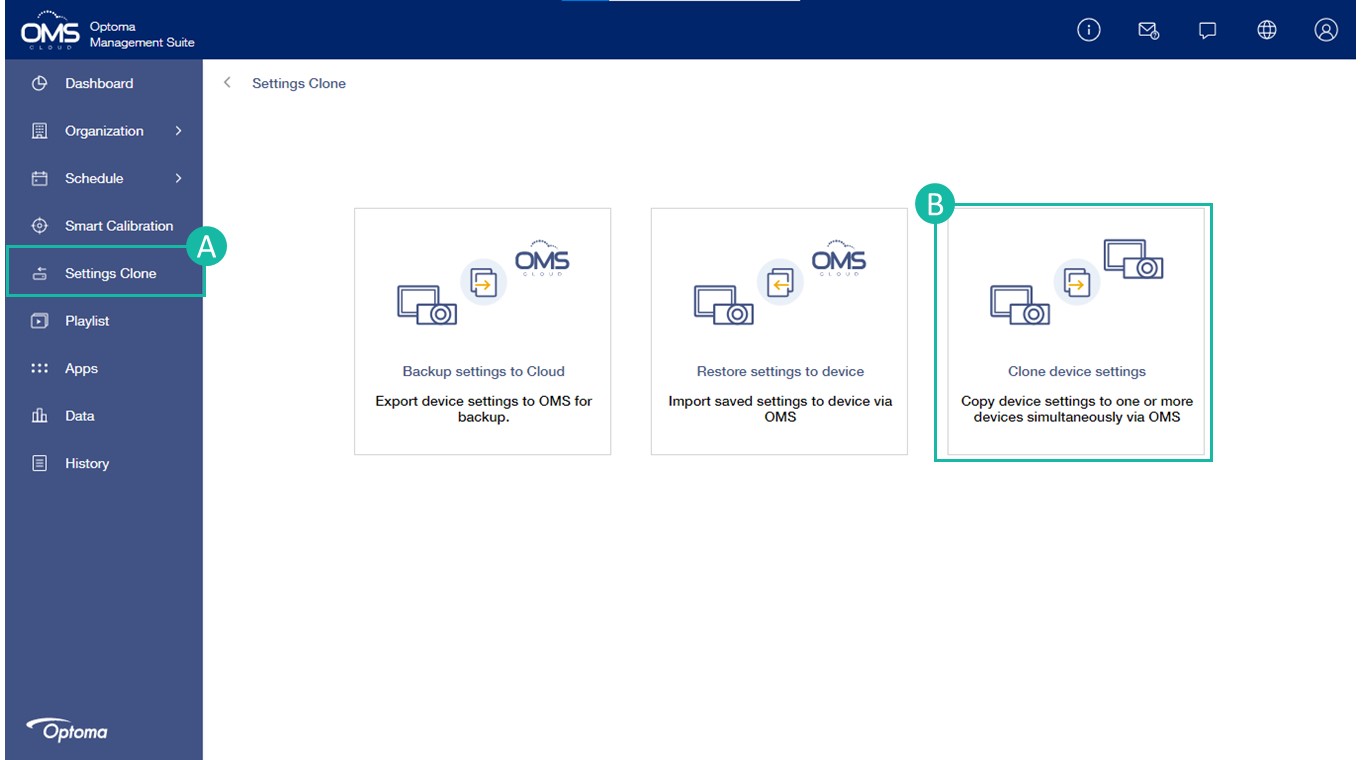
Copy device settings to one or more devices at once via OMS Settings Clone > Clone device settings > Select a device that you want to clone to other device > Select destination devices |
A Click Settings Clone on the left function menu
B Click Clone device settings.
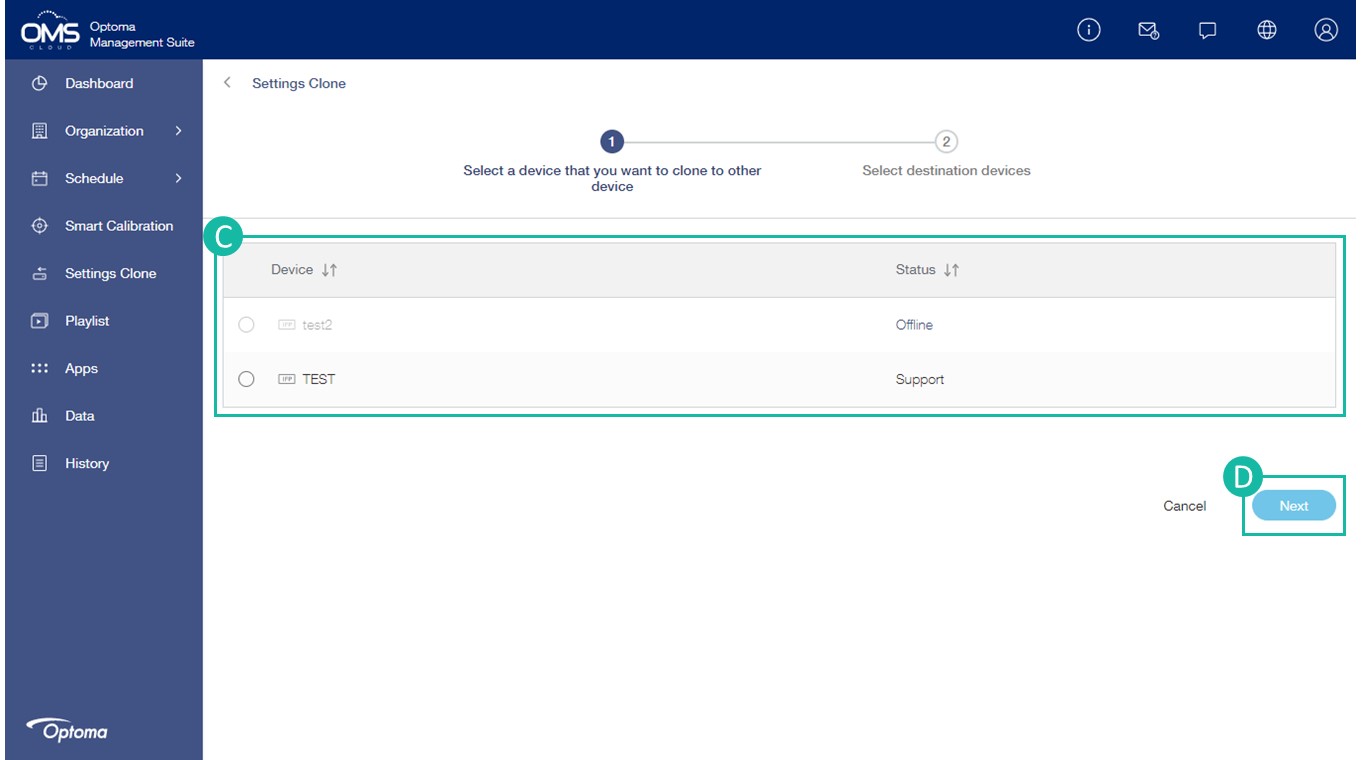
C Select a device that clone to other device.
D Click Next.
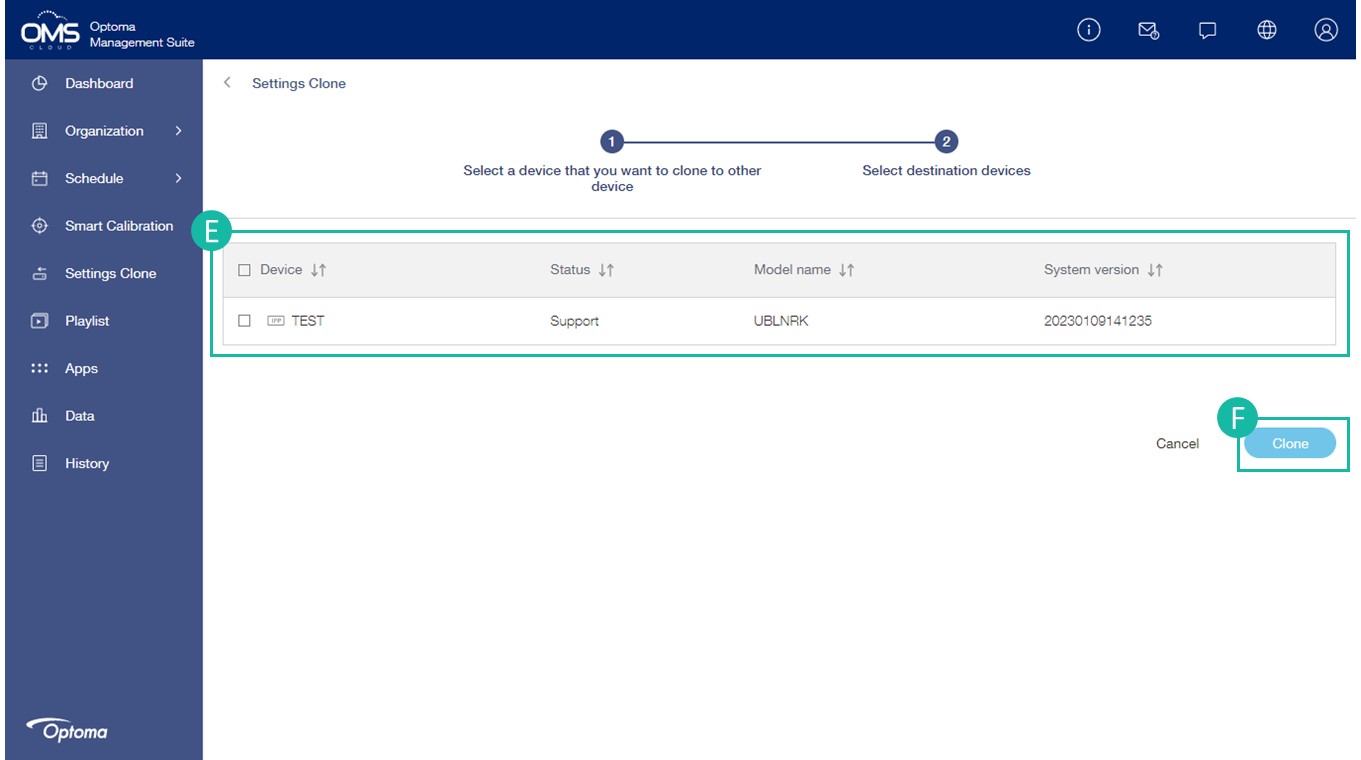
E Select destination devices.
F Click Clone.
Apps Management
Easily install and uninstall apps on multiple Android devices via OMS, saving you the hassle of repetitive manual installations.
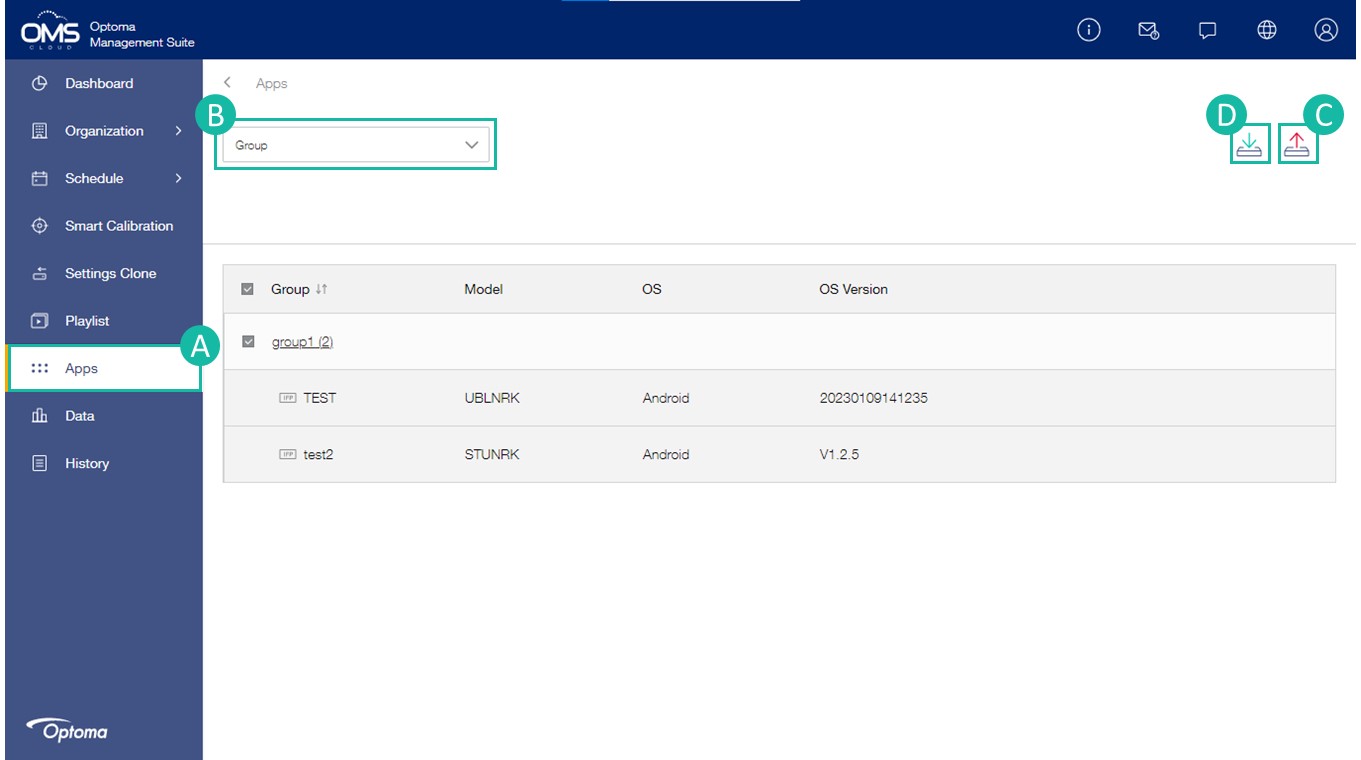
A Click Apps on function menu.
B Select Device / Group / Locaiton.
C Click  to upload apps.
D Click  to uninstall apps.