System Management
System management function facilitates administrators to set device permissions. To do the system management, please follow the steps:
- Device on the function menu > Select a device > click System Management tab > System Management panel.
- Group on the function menu > select a group > click
 > System Management panel.
 - Location on the function menu > select a location > click > System Management panel.
System update
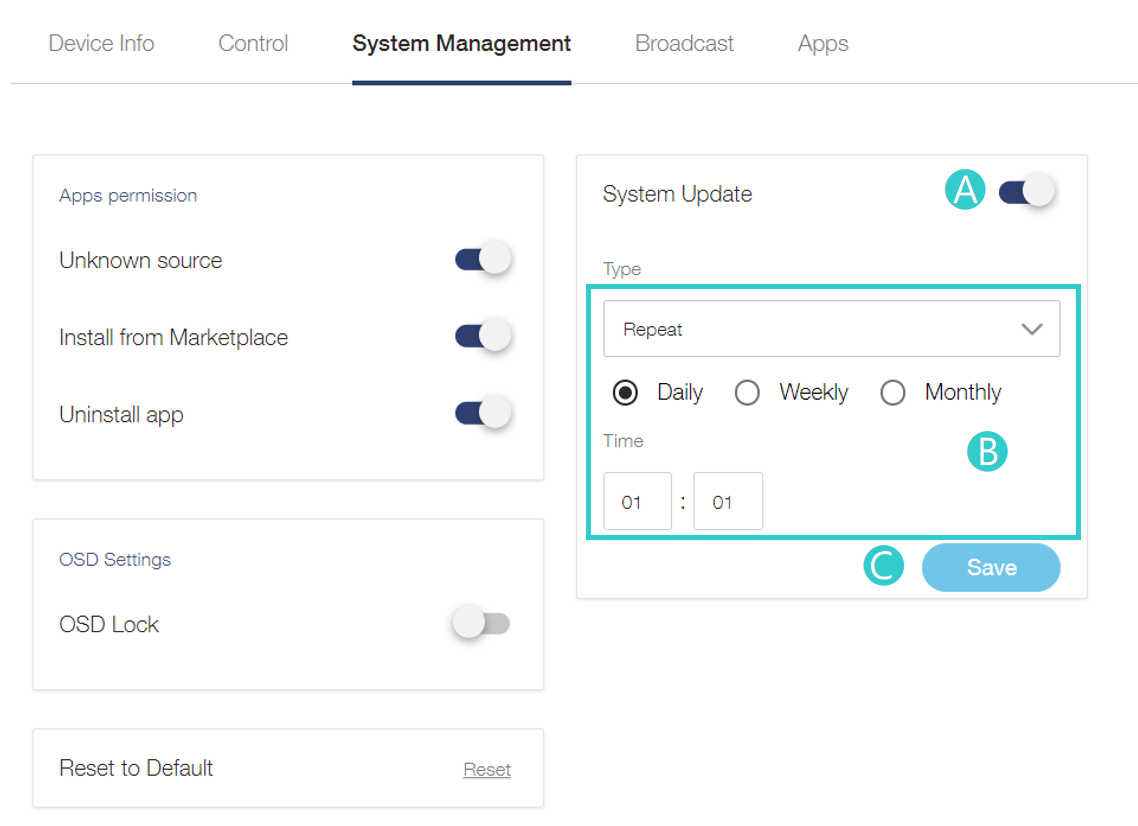
System updates ensure device firmware is always up to date. Specify how often or when OMS checks for and performs firmware updates. If no new firmware is detected, no system update will occur.
A System Update On / Off :
- Enable or disable automatic system updates.
B If turn on the system update, you can choose :
- Now : Check for updates and execute when new updates are detected
- Repeat : Choose daily, weekly, monthly , time setting.
C Click Update.
Reset OSD
A Click Reset:
- Reset device OSD to default value
*System management features vary by model.
Reset to Default
B Click Reset :
- Easily restore your device to default settings.